Join Flocknote & Manage Subscriptions
Want to be the first to know what’s new in the St. Ignatius community? Subscribe to our twice-weekly digital newsletter to stay current on the latest parish news, and/or subscribe to email or text updates from other St. Ignatius groups!
Sign up is easy:
- Visit SaintIgnatiusCincy.flocknote.com and create a new account or
- Send the text “IgnatiusLoyola” to 84576 and follow the prompts.
Creating a New Flocknote Account
- From SaintIgnatiusCincy.flocknote.com, fill in the name and contact fields inside the Get Involved box.
- Click the Sign Me Up button. A list of St. Ignatius groups will appear. You will have the option to select which groups you want to receive updates from or you can choose to receive all communications. You choose how much or little you would like to receive and can opt out at any time.
- Click ST. IGNATIUS LOYOLA PARISH to subscribe to the twice-weekly parish digital newsletter. A large green checkmark will appear.
- Click the Next button at the bottom. You will be subscribed.
- Be sure to confirm your email address if prompted to do so.
Please spread the word to help us share timely communications with as many parishioners as possible.


Managing Subscriptions in Flocknote
How do I stop texts or emails from being sent to me?
To Unsubscribe from Text Messages:
When you receive a text message from your church or organization, reply STOP and you will be unsubscribed from the particular group that text was coming from (example = Youth Group, Volunteer Team). If it’s been a while since you’ve received a text, you can simply text STOP to 84576 (if in the US).
To Unsubscribe from Emails:
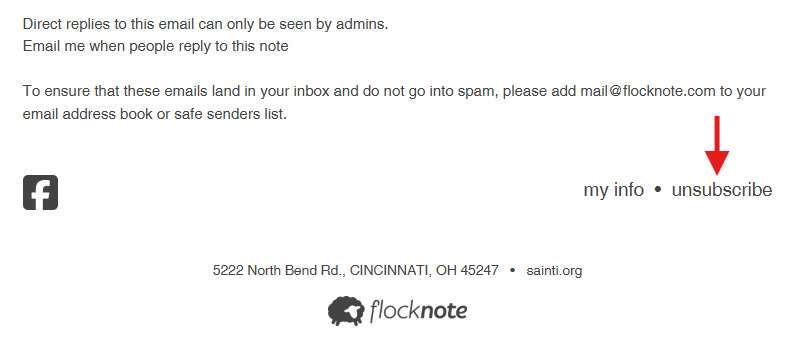
When you receive an email from your church or organization, click the ‘Unsubscribe’ link that is in the bottom right corner of any note.
To Adjust Notifications or Unsubscribe
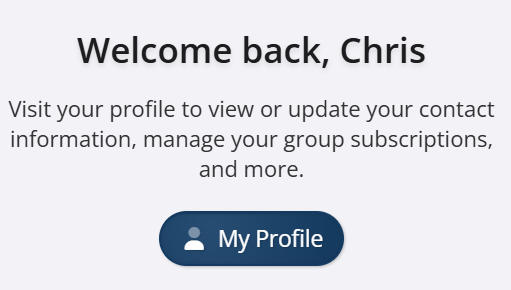
- Log into Flocknote and view your profile by clicking the My Profile button. Your account information will be displayed.
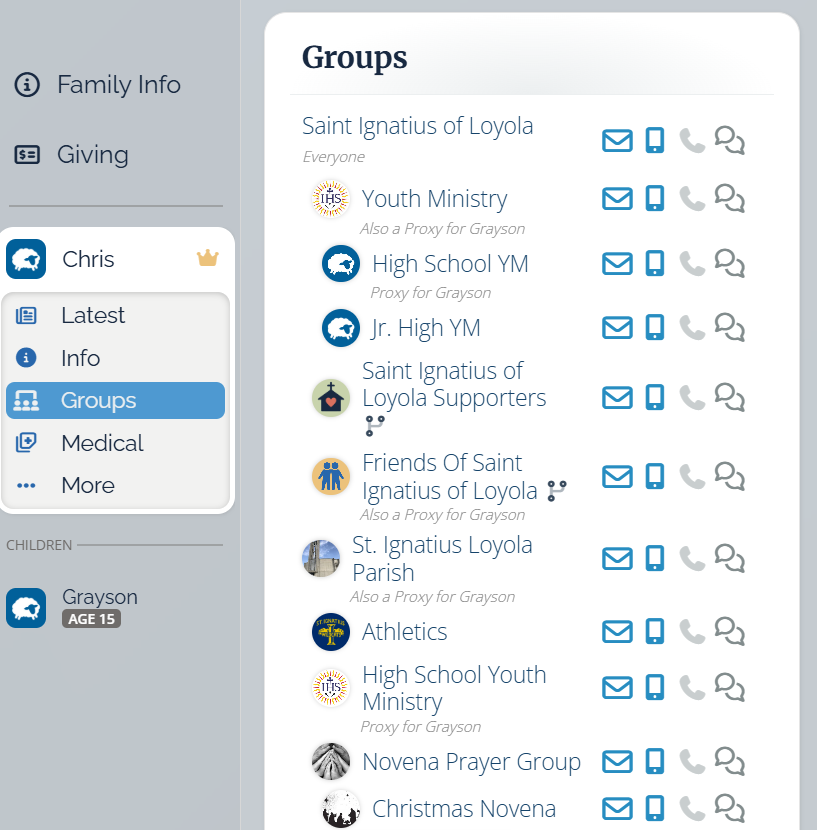
- Click Groups to display the groups to which you are subscribed.
- From the screen that opens, you can adjust your text and email notification settings for all your groups or completely remove yourself from a group. Move your cursor over (or tap) the desired group and click the X button that appears to completely remove yourself from that group. Please note that once this is done, you will no longer receive text messages or emails from that particular group.